How to Use the Asset Library to Reuse Media
Organize media, reuse existing assets, and avoid uploading the same file again and again when your team creates content.
- Author
- Kavio Team
- Updated
- June 5, 2026
- Read time
- 3 min read
How to Use the Asset Library to Reuse Media
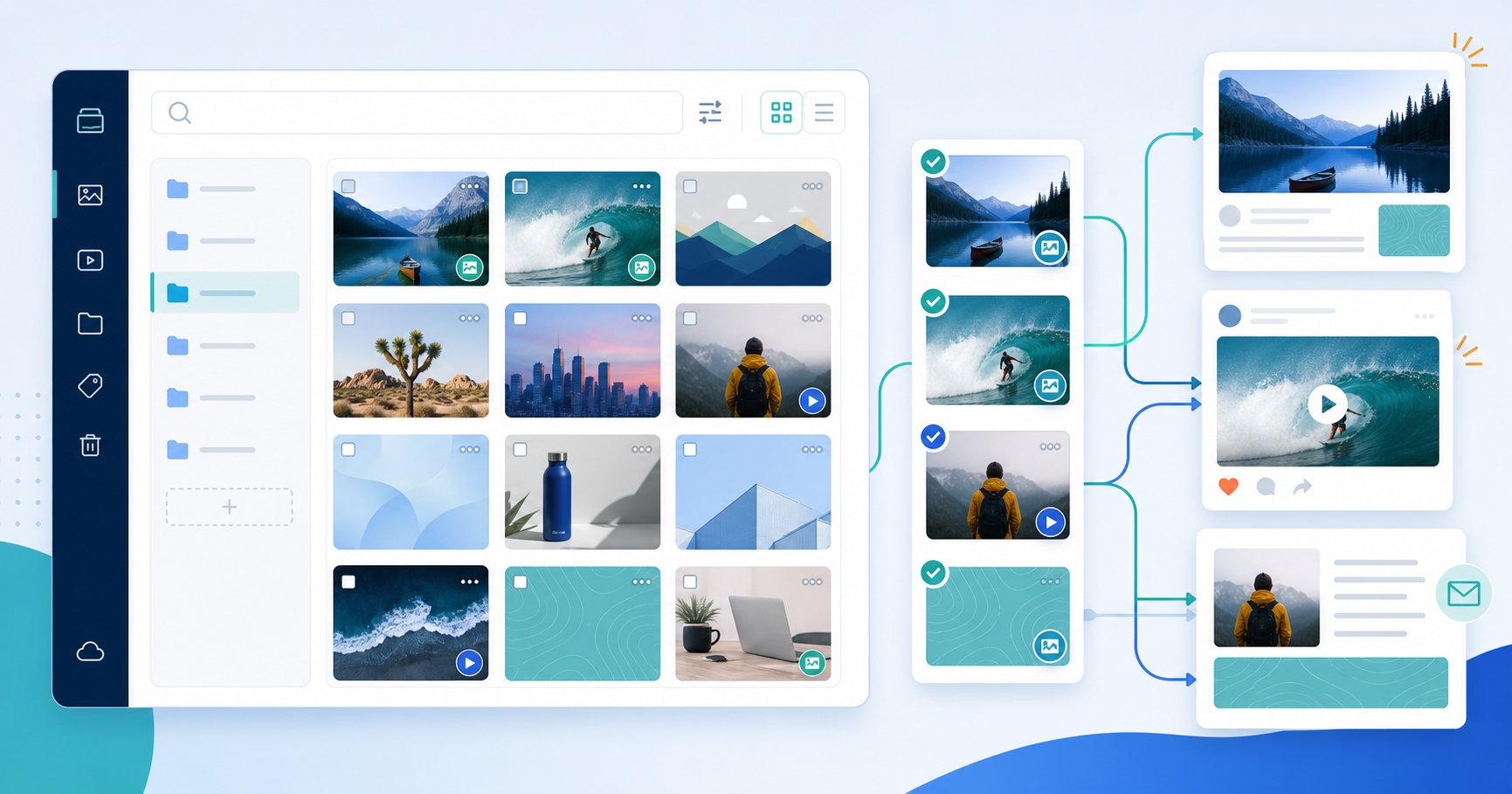
If every post requires uploading the same file again, the workflow will slow down quickly. The asset library keeps media in one place so you can reuse it whenever you need it.
1. Why the asset library matters
The biggest media problem is usually not missing files. It is files being in the wrong place.
The asset library helps with:
- Media scattered across tools and folders
- Re-uploading the same file repeatedly
- Finding old campaign assets
- Avoiding outdated or unapproved files
When media is organized, content moves faster and stays consistent.
2. What the asset library is
The asset library is shared media storage for a workspace.
In Kavio, you can:
- Upload images and videos from your machine
- Search Unsplash images
- Search GIFs or short clips from Giphy
- Reuse saved assets across posts
That is especially useful for brands that reuse the same visuals or CTA graphics often.
3. Organize assets by purpose
Do not store everything in one pile.
Think in groups:
- Logo and brand visuals
- Campaign assets
- Blog imagery
- Evergreen graphics
- Short-form video
- Client-specific media
Structure makes it much easier for the writer or operator to find the right file quickly.
4. Do not confuse the asset library with media upload
They are related, but they are not the same thing.
- Media upload: a file attached to one specific post
- Asset library: media stored for reuse in the workspace
If your workflow has multiple posts using the same image or intro video, the asset library saves the most time.
5. When to use Unsplash and Giphy
Built-in search is most useful when you:
- Need a quick mockup
- Want placeholder imagery for concept review
- Need something lightweight and fast
For brand-critical media, custom creative or approved assets are still safer.
6. Pay attention to size and format
Every platform has its own media requirements.
Check:
- Image or video
- Aspect ratio
- Max file count
- File size
If you ignore that, a post can look fine in the editor and fail later during publish.
7. Reuse media without making content stale
Reusing media does not mean repeating everything exactly.
You can:
- Keep the same brand image and change the caption
- Keep the same intro video and change the headline
- Keep the same media set and change the story angle
That turns the asset library into a real content system, not just a file shelf.
8. Asset rules that help
- Use clear file names
- Group by campaign or client
- Remove files you no longer use
- Keep approved versions in one clear place
If you do that well, the asset library speeds up the whole team without making everyone remember where things are stored.
Quick checklist
- Put logos, campaign images, and videos in the asset library
- Organize assets by content type
- Reuse shared files instead of uploading again
- Check formats before scheduling
- Use built-in search for quick concept work
A good asset library makes the team faster without sacrificing consistency. If your content moves through multiple campaigns, this is one place worth standardizing early.